
Setup Guides
Build the station in the right order.
A clean gaming setup starts with compatibility and placement, then moves through physical connections, system recognition, application settings, and final testing. Work in stages so each device has a clear role.
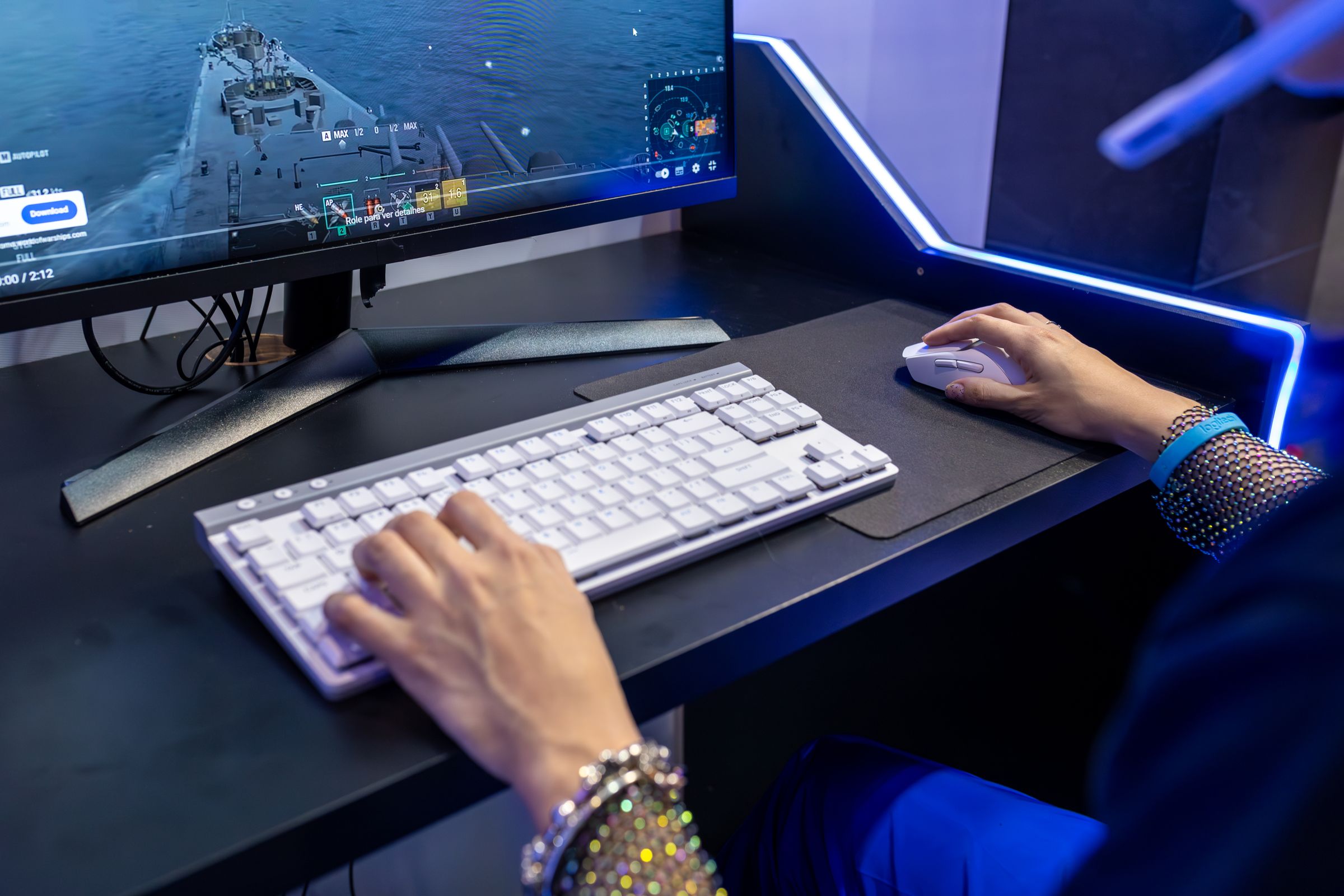
01 / Preflight Dashboard
Preflight the setup
Before opening every cable or changing system settings, map the setup on paper or in a simple checklist.
Items
Platform
Confirm the device, console, computer, or system each product will use.
Connections
List required ports, wireless methods, audio paths, power connections, and adapters.
Space
Measure the available desk, stand, chair, cockpit, or storage area.
Placement
Plan reach, viewing angle, microphone position, controller clearance, and cable movement.
Settings
Know where system, game, voice, streaming, and control settings will be selected.
02 / Alternating Guide Chapter
Mouse, keyboard, and controller setup
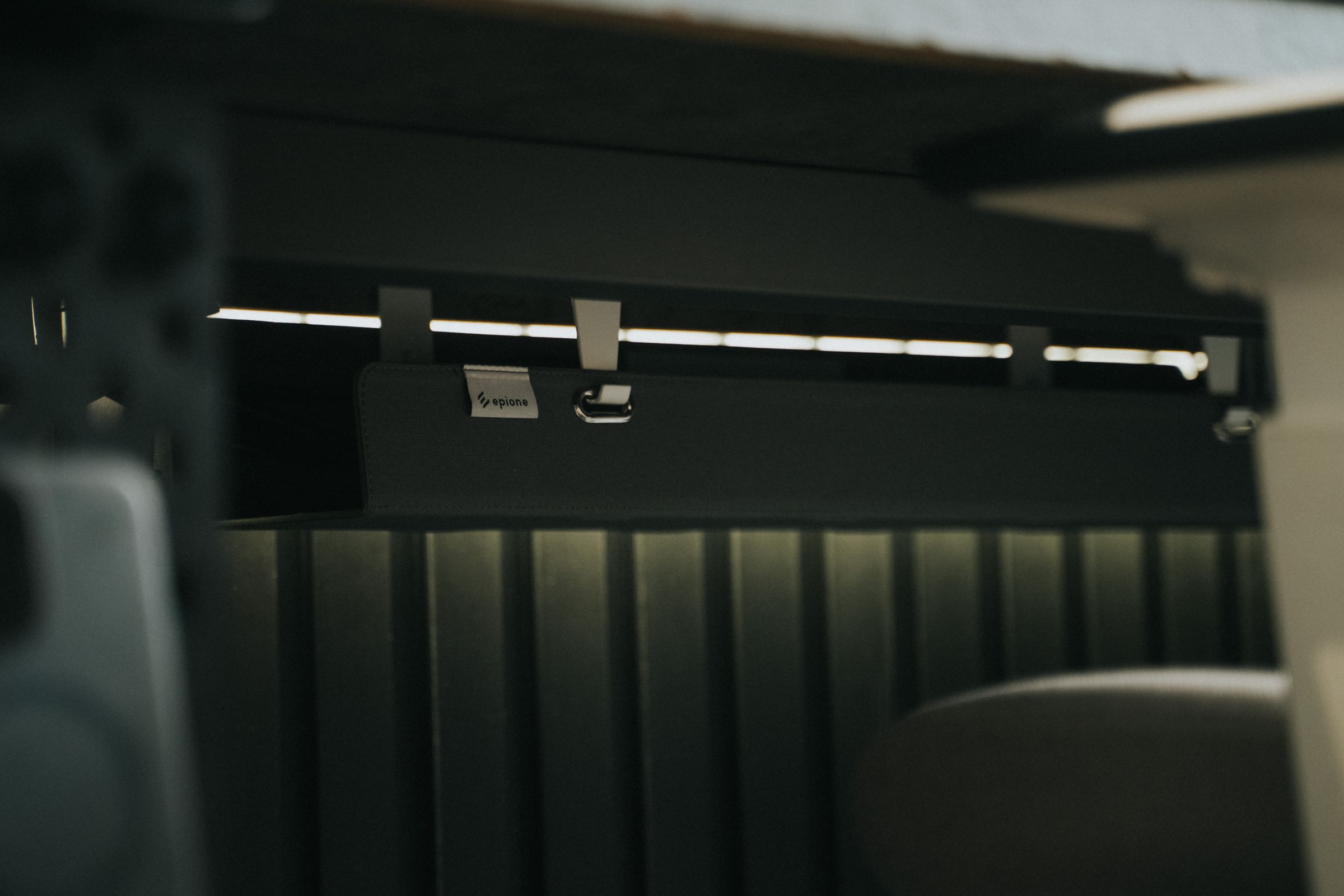
01 / CONTROLS
Create a stable input path first, then tune the software layer. Keep the primary controls within a relaxed reach and leave enough surface space for the movement style the game requires.
Steps
- Confirm product compatibility and the required connection type.
- Place the device before routing cables so movement and reach can be tested.
- Connect the product and confirm that the system recognizes it.
- Select the intended device inside the game or application.
- Review key, button, trigger, stick, or axis mapping before competitive play.
- Test one control change at a time and save a known working configuration when the platform supports it.
03 / Alternating Guide Chapter
Headset, microphone, speaker, and interface setup

02 / AUDIO & VOICE
Treat audio as a signal path. Identify where sound enters, where it is processed, and which device should handle output and voice capture.
Steps
- Identify the input, output, and any interface or adapter in the path.
- Connect the physical chain without forcing plugs or stretching cables.
- Select the intended input and output in system settings.
- Repeat the selection in the game, voice, or streaming application when required.
- Position the microphone for clear pickup without blocking controls or the display.
- Test voice and playback at a moderate level before refining the mix.
04 / Alternating Guide Chapter
Racing controls and cockpit alignment
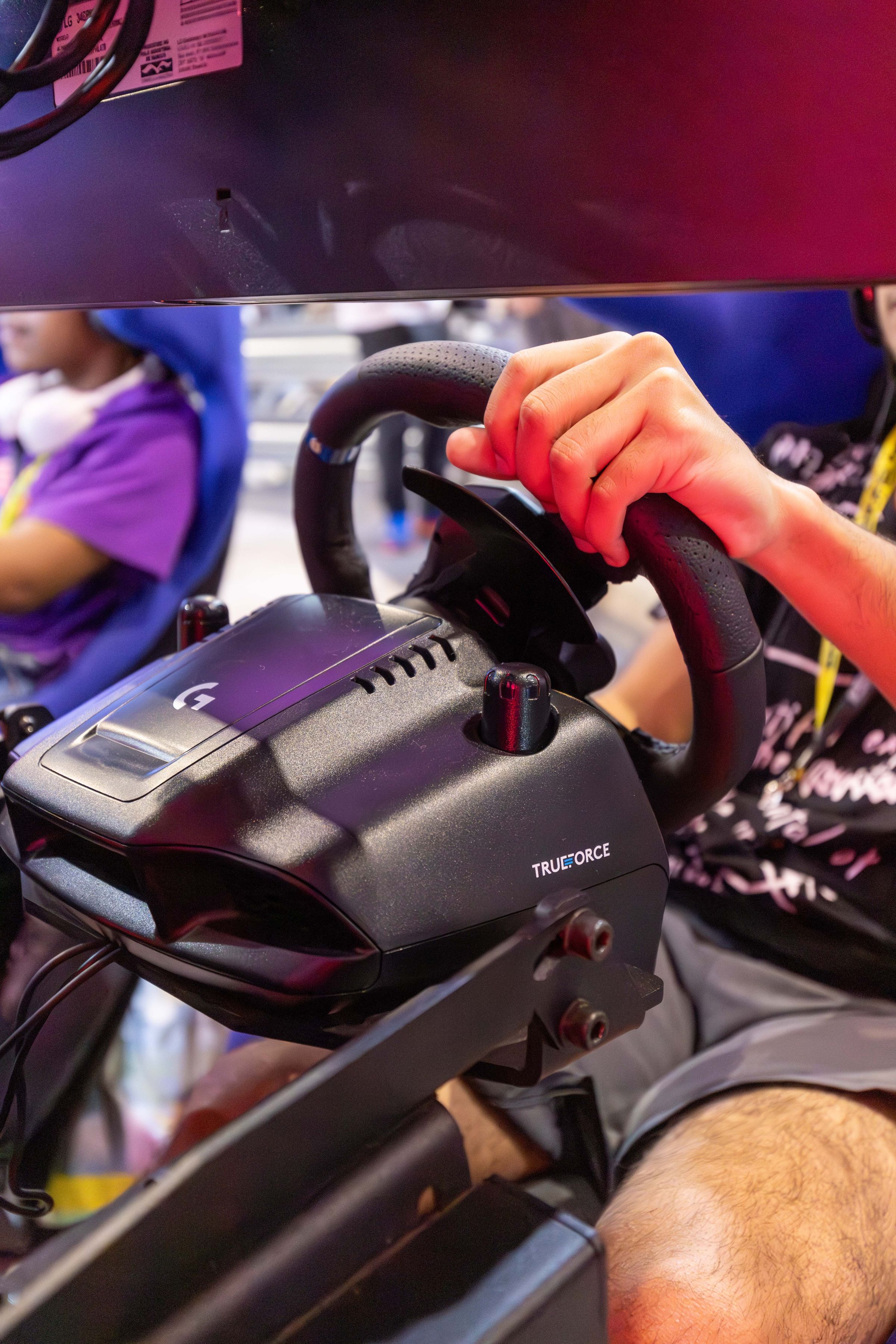
03 / SIM RACING
Physical stability and clear movement matter before control mapping begins. Align the seat, display, wheel, and pedals so the setup can be tested without cables entering moving areas.
Steps
- Confirm platform support, connection needs, mounting requirements, and available space.
- Stabilize the seat or chair, wheel position, pedals, and display before powering equipment.
- Route cables away from pedal travel, wheel movement, and adjustment points.
- Connect and confirm system recognition for each control device.
- Review steering, pedal, button, and axis mapping inside the game.
- Begin with controlled tests and refine placement or settings one variable at a time.
05 / Alternating Guide Chapter
Organize the physical workflow
04 / DESK & CABLES
The desk should support play, communication, and maintenance without hiding critical connections. Group cables by destination, preserve slack where equipment moves, and keep power and signal paths accessible.
Steps
- Place the monitor, stand, controls, audio gear, and accessories before securing cables.
- Separate frequently moved cables from fixed runs.
- Avoid sharp bends, pinched cables, and tension at connectors.
- Keep controls, mute switches, and connection points accessible.
- Label similar cables when several devices share the same area.
- Recheck chair movement, desk adjustment, and controller clearance after routing.
06 / Optimization Grid
Final setup check
Items
- Every device is recognized by the intended platform.
- The active game or application uses the correct input and output devices.
- Controls are mapped and tested in a safe, low-pressure environment.
- Microphone, headset, speaker, and interface paths are clearly assigned.
- Cables do not interfere with movement, ventilation, or controls.
- The display, chair, desk, and controls support a comfortable position.
- Product instructions remain available for device-specific steps.
07 / Compact Faq
Setup questions
Items
Which device should I connect first?
Begin with the primary platform and essential display or control path, then add one device at a time. Confirm recognition and basic operation before connecting the next layer.
Should I change several settings at once?
Change one setting or connection at a time and test the result. This makes it easier to identify what solved or introduced a problem.
What should I do when the product instructions differ from this guide?
Follow the product-specific instructions. This page provides a general setup framework and does not replace the requirements for a particular product or platform.
KYRONEX SUPPORT
Need a clear next step?
Contact Kyronex with the product name, order number when relevant, and the exact details of your question.